Biotic OS App
Using the App
All Biotic Instruments devices require the app, Biotic OS, to run. Biotic OS makes controlling and monitoring your devices simple, and setup is a snap.
Installing the App
Biotic OS is free on the App Store and Google Play.
Creating an account
Sign-up runs in four steps. It takes a couple of minutes, and you only do it once.
Joining a team that already uses Biotic Instruments? Don’t create a second Organization. Ask your admin for an invite link or QR code, and sign up through that instead.
Organizations & Teams
An Organization is the account everything lives in. It can be a home, a business, or a single project; every device, group and activity record belongs to one.
Inside it, Teams decide who can reach what. Every device belongs to exactly one Team, and so does every Group, so adding someone to a Team is what gives them access to the devices in it.
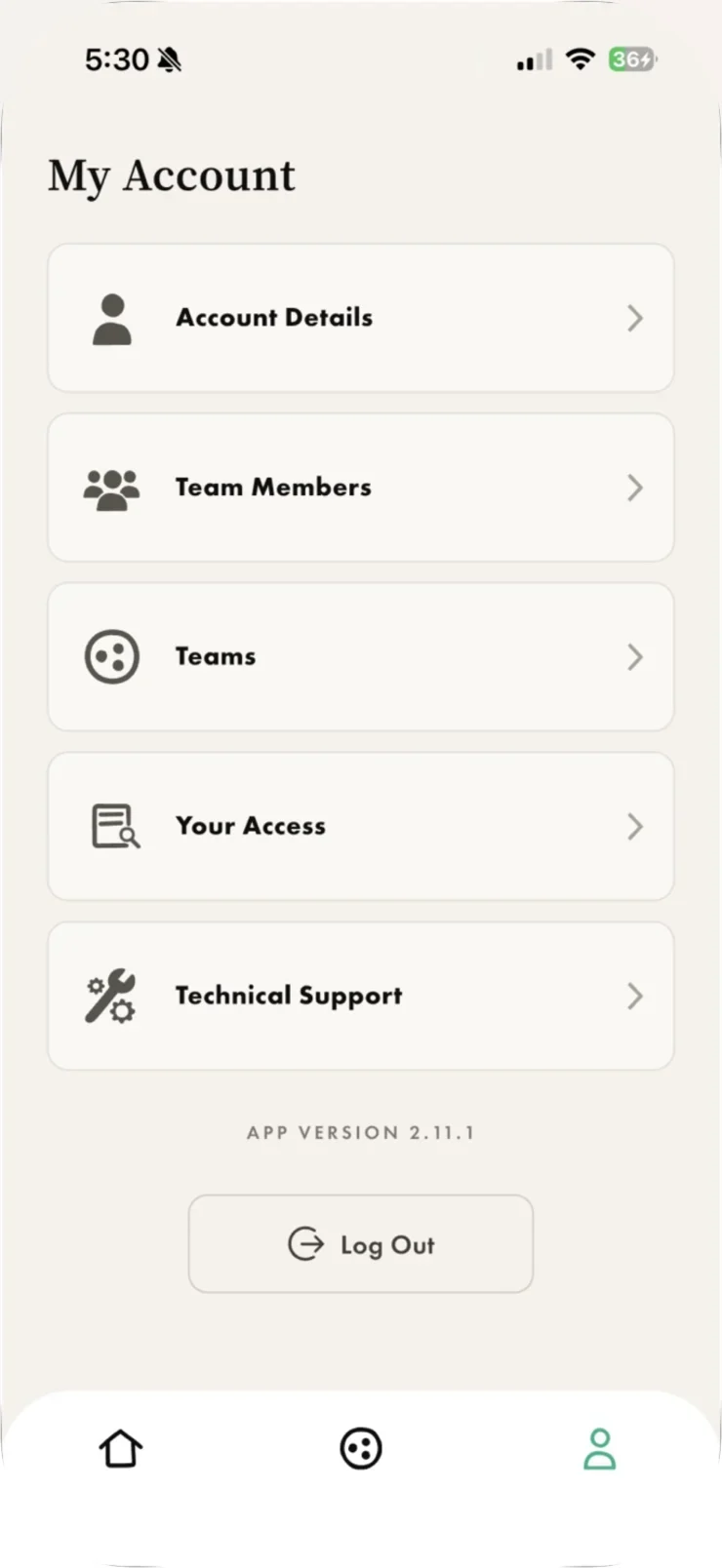
Invite people from Account → Team Members, either by sharing a link or by having them scan a QR code. Permissions are checked everywhere, so an action you don’t have the role for, such as editing schedules, is refused rather than hidden.
Adding a Device
From the devices screen, tap the Plus icon in the top right. Setup is a guided flow and takes 5 to 10 minutes.
Step 1. Connect the device to power. The indicator light pulses once every two seconds. If it isn’t pulsing, reset the device and try again.
Step 2. Scan the QR code on the device, or switch to manual and type the serial number printed beside it.
Step 3. Choose the connection: Cloud, or Bluetooth if the site has no internet.
Optional: pick which Team the device belongs to. That choice decides who can see and control it.
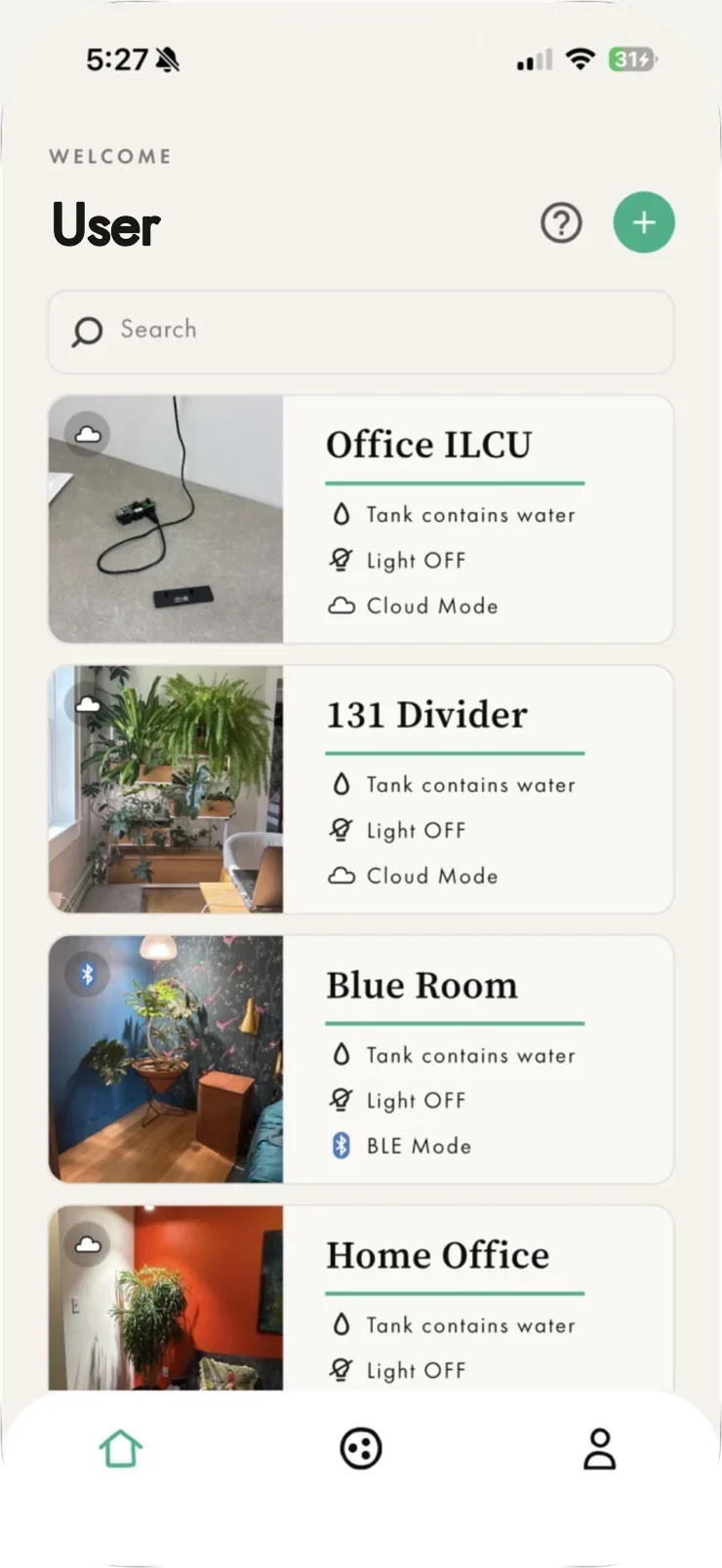
Cloud or Bluetooth?
Cloud Mode
RecommendedThe device reaches the cloud through your local WiFi router. Full access to every feature, including remote control, schedules, live sensor data and the activity log.
Bluetooth Mode
Local onlyFor sites with no internet access. The app talks to the device directly, one phone at a time, and remote access is off.
Switch modes any time from Network Mode on the device page. Switching interrupts any irrigation or lighting schedule that is running at that moment, so the app asks first.
Configuring Your Device
Rename your device. Tap the Pencil icon in the top right corner of the device screen to edit the name at any time.
Add a photo. Replace the default icon with a photo from your camera or library. The best practice is to show the device within its space: step back to capture the location rather than taking a close-up.
Name your outputs. Clear names make it much harder to point a schedule at the wrong zone, which is the usual cause of over- or under-watering. Output names live in Settings → Irrigation Settings, alongside each pump’s flow rate in ml/min.
Schedules
A schedule runs an output automatically, at a time and on the days you choose. The start time is when it begins and the duration is how long it runs, so a 6:00 AM start with a 15 minute duration finishes at 6:15. A single run can be up to 20 minutes.
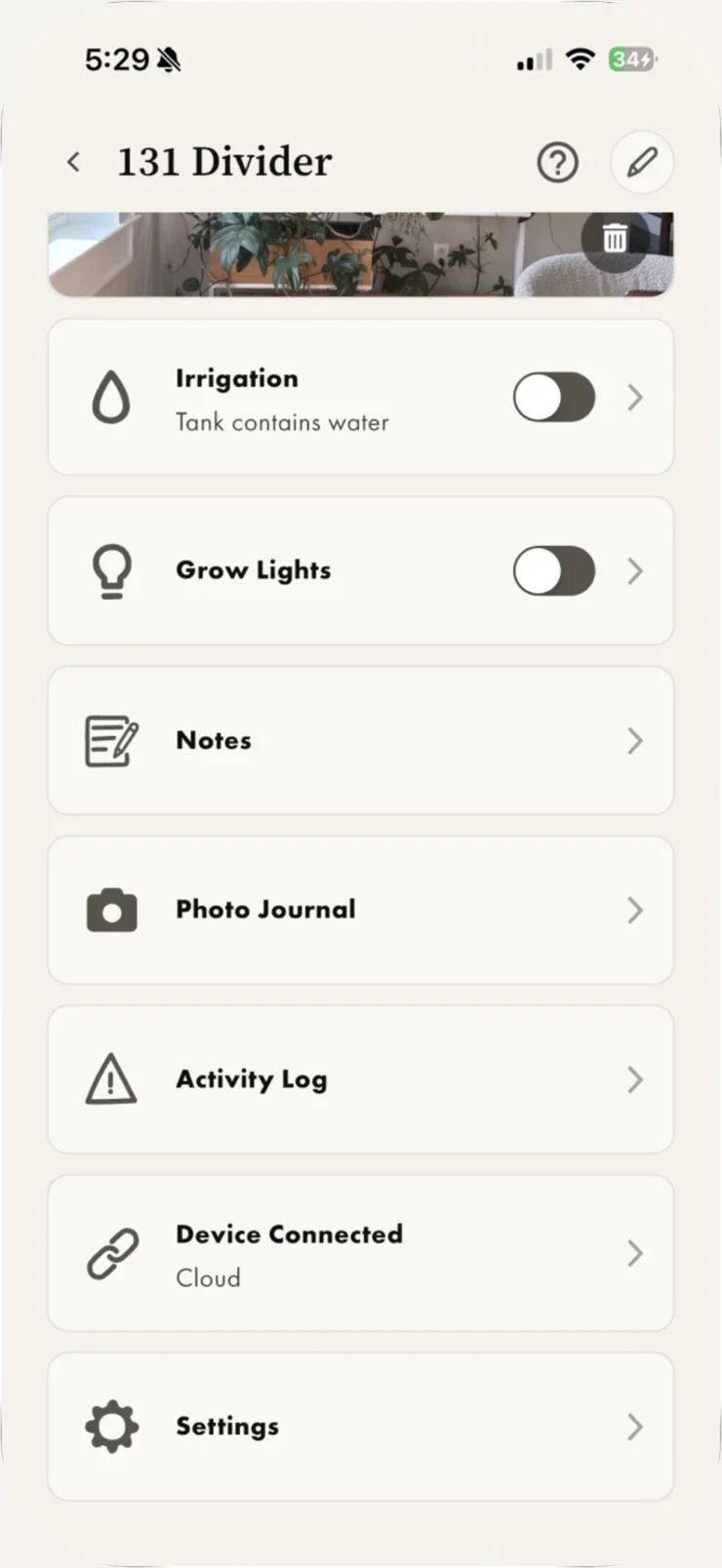
Open a device and tap Irrigation or Grow Lights to reach its schedules.
Starting points worth building from:
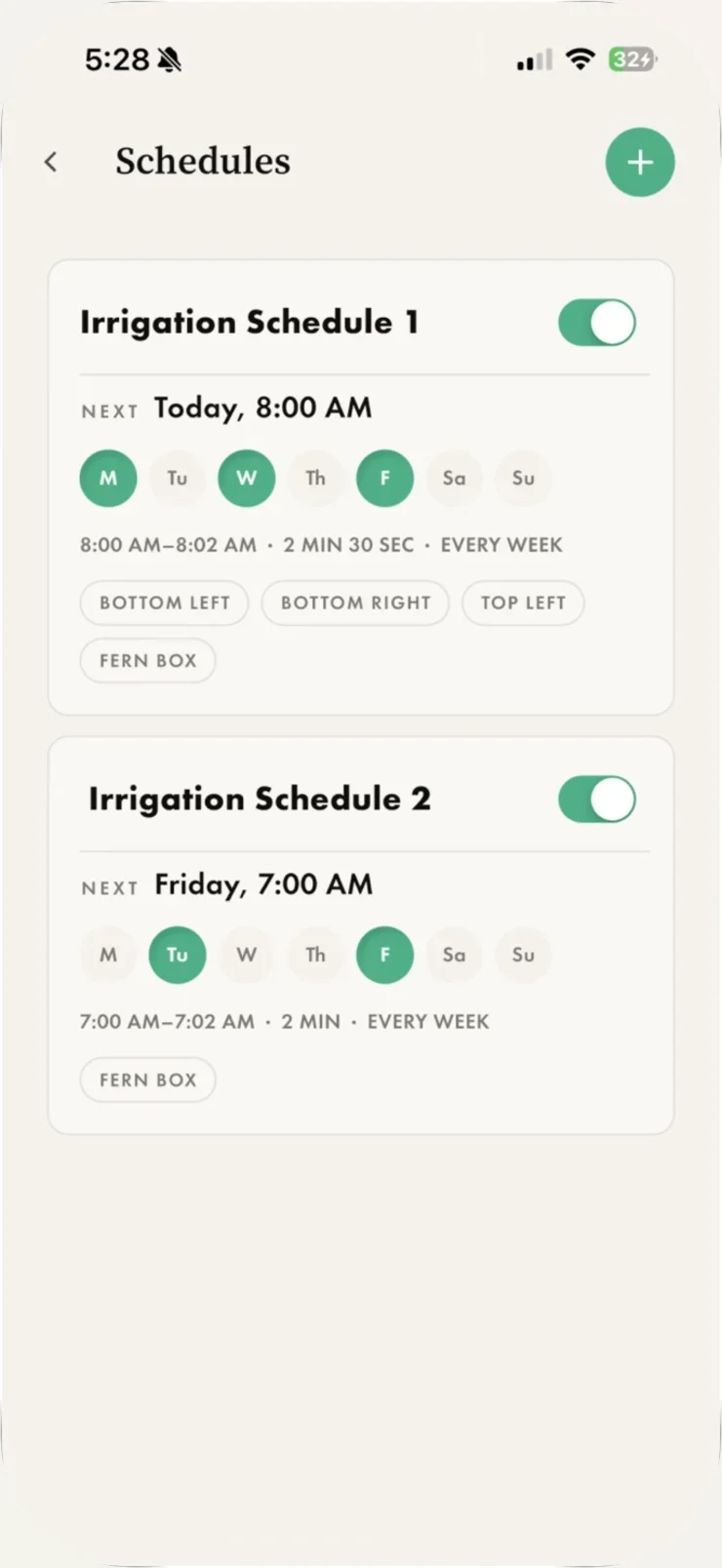
Increase timing incrementally. An extra minute on a two-minute schedule is a 33% increase in water, a significant adjustment. Treat the settings above as a starting point only: ambient light and temperature both change how fast plants drink.
One-shot timers run immediately for a chosen duration, up to 20 minutes, without touching your regular schedule. Use them when boxes are slightly dry and need a quick top-up, or to run out the remaining lighting hours after a Green Divider has been unplugged.
Pausing a schedule. Press the toggle beside it. The schedule stays in place and stops running until you switch it back on.
Duplicating and deleting. Open a schedule to duplicate it, which is the quickest way to build a second zone from a first. Delete This Schedule at the bottom of the same screen removes it.
Automation Mode
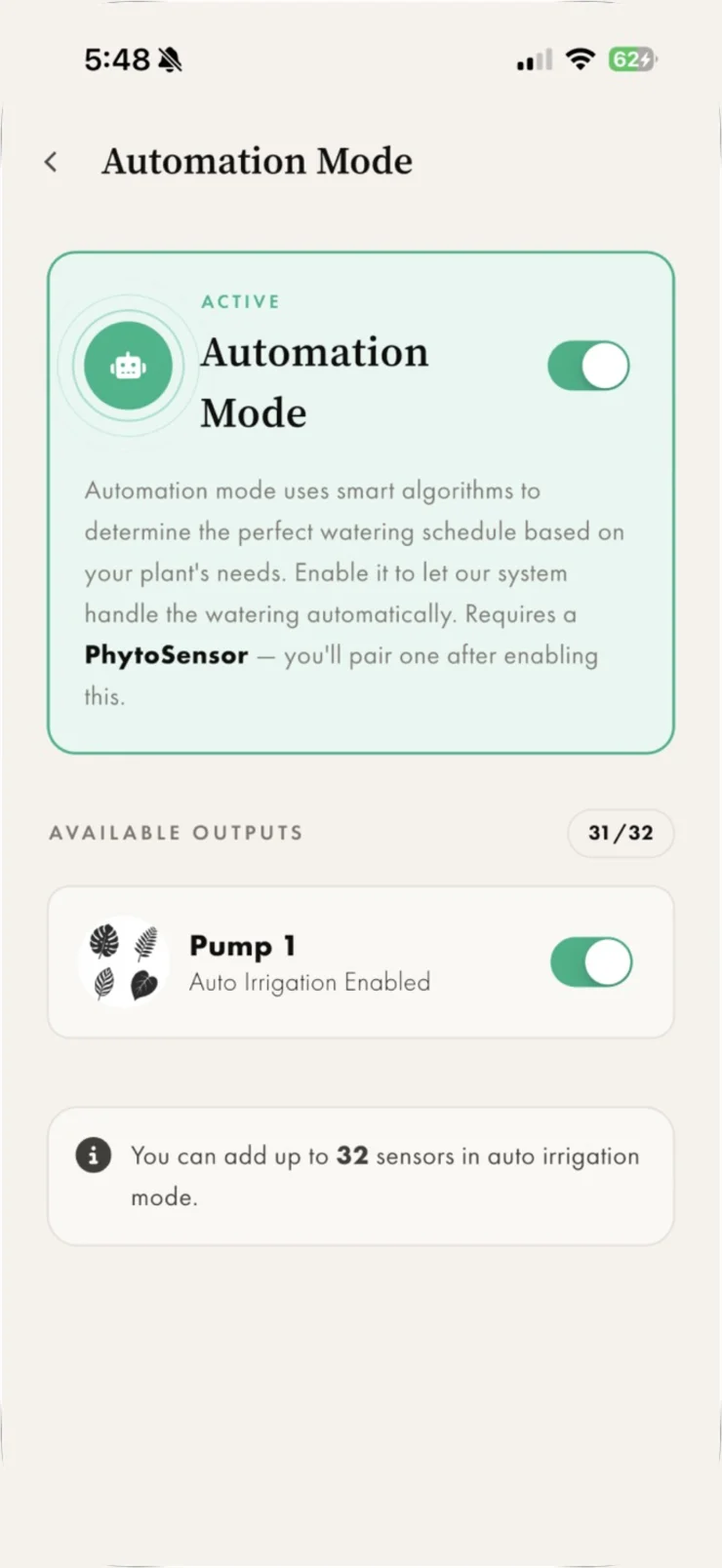
With Automation Mode on, you stop setting watering times and the device picks them instead.
The PhytoSensor sits in the box and reads the water level at five heights. A sixth height catches an overflow.
The cycle works like this. The device fills the box to the full mark, then waits while the plants drink the water down. When the level hits the dry mark, the device checks how long that took and how much water it pumped in. From those two numbers it works out a drink rate, which is how much the plants drink each hour. It uses that rate, plus the moisture level you set in the plant profile, to pick the next refill time.
So the watering follows these plants instead of a calendar. When they drink faster in summer, refills come sooner. When they slow down in winter, refills spread out.
Automation Mode and manual schedules are mutually exclusive. Turning automation on disables your schedules; turning it off puts them back. Your plan sets how many sensors can run in auto irrigation mode, and Account → Your Access shows how many of them are left.
Pairing a sensor
Make sure the sensor is within 30 feet of the device.
Press and hold the button on the sensor for 3 seconds.
Wait for its LED to blink blue rapidly, then tap Connect to Sensor.
Then set a Plant Profile. Pick the plants in the box and each one brings its own moisture level, or choose Custom and set it yourself on the wheel. The scale runs 1 to 10 and every step is named, from Dry (“soil dries out completely”) through Moderate at 5.5 (“even moisture, allows the top layer to dry”) to Waterlogged. Choose more than one plant and Adaptive Learning averages them from the measured drink rate, which is the recommended setting.
Saving the profile sends two things to the device: that moisture level, and which of the sensor’s five levels to read.
What the sensor reports
History
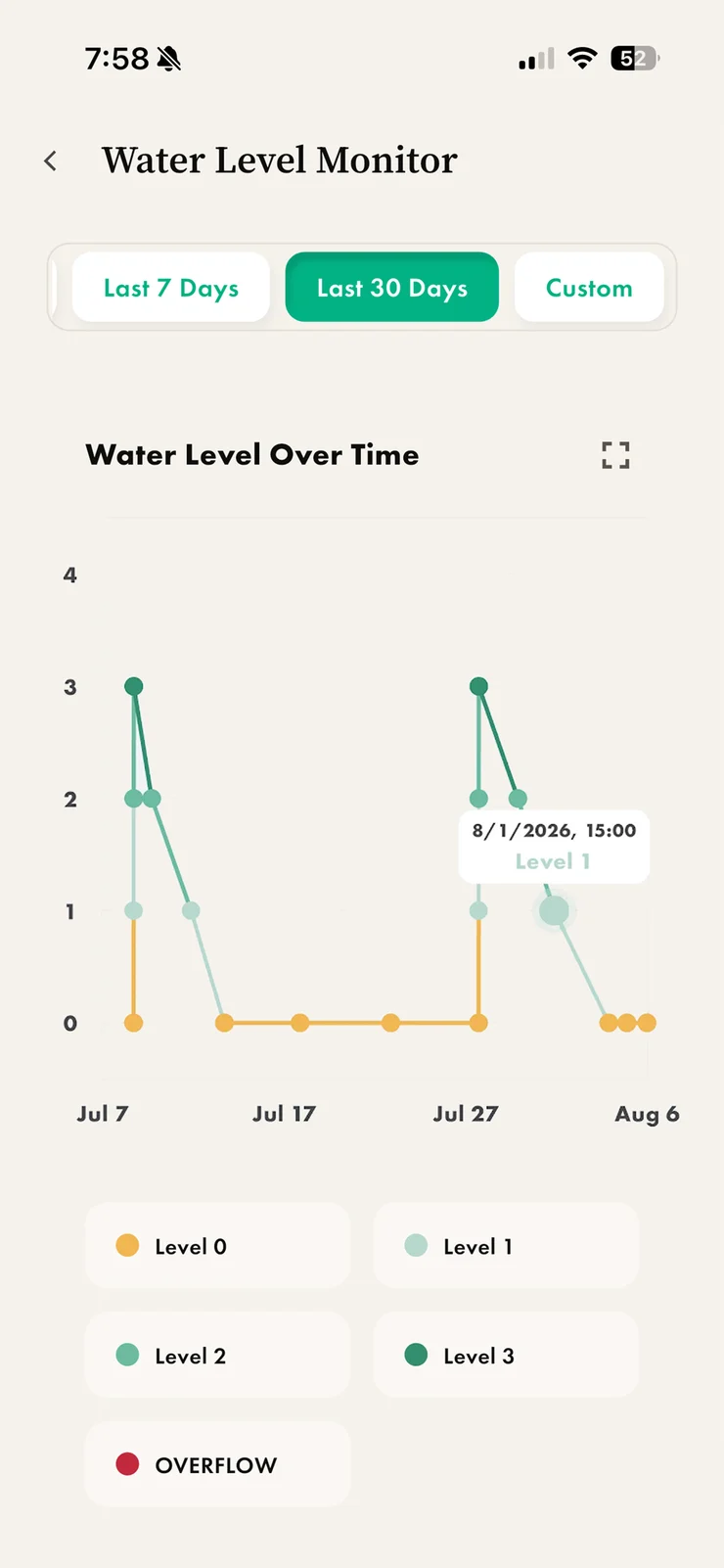
Each reading has its own chart over the last 7 days, the last 30, or a custom range: Moisture Level Over Time, Drink Rate Over Time and Water Level Over Time.
Water level is plotted in steps, Level 0 through Level 3 plus Overflow, so a tank that is draining faster than it used to shows up as a steeper fall between refills.
Notes
Add maintenance notes to any device, with optional photo attachments. Particularly useful for tracking changes when several people service the same unit, and any site-specific information can live here too.
Photo Journal
The first photo you take becomes the reference frame. Every photo after it is lined up against that frame, so you can drag through months of growth in one steady shot. It is the clearest way to show a client what the planting has done since install.
Activity Log
The Activity Log holds all system runtime data. Reviewing it is how you learn a given installation’s real water demand, which differs with plant type and sun exposure, and how you plan service visits around it.
Summary tab
A custom date range with total runtimes for every output. Estimated water usage comes from the flow rate set in Irrigation Settings, so keep that accurate.
Activity Log tab
A chronological list of everything the device has reported.
Notifications
Four push notifications, each switched on or off per device in Settings → Notifications.
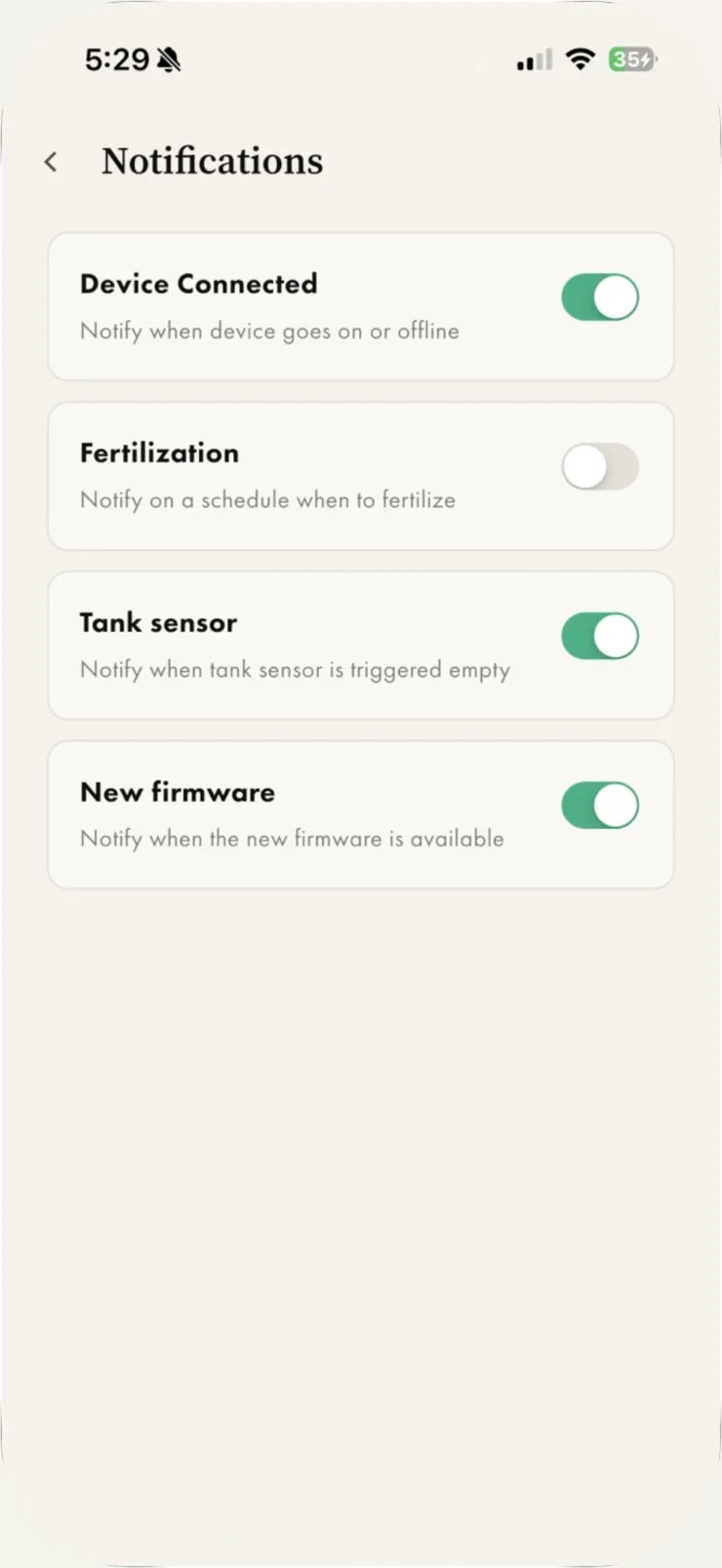
Fertilizing also shows on the device page itself: once you are past due, a banner reports how many days overdue you are, with I have fertilized to reset the count and Cancel reminder to stop it.
Device Settings
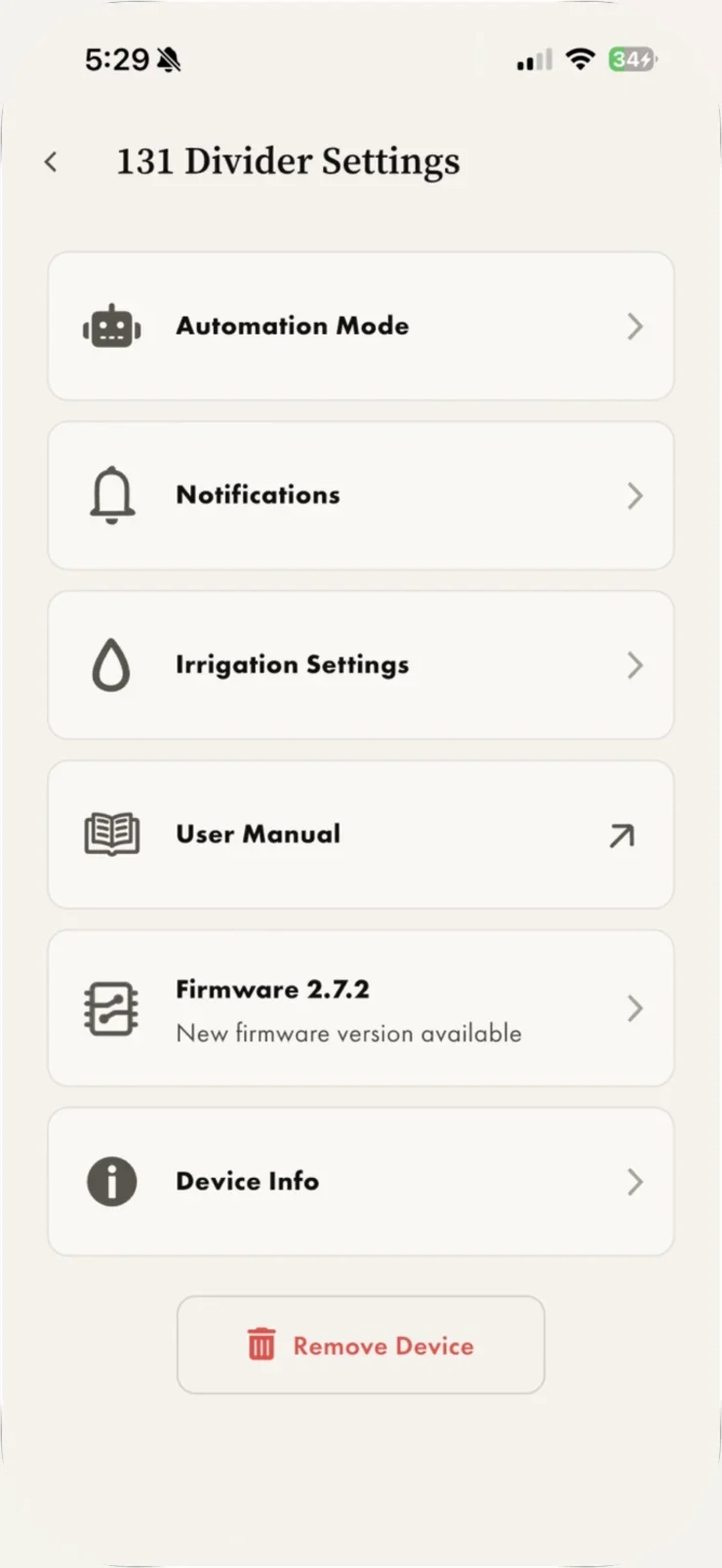
Devices with switchable outputs show one more entry, Configurable Outputs, where you set what each output controls.
Firmware updates work in both Cloud and Bluetooth mode. Keep your phone near the device and the app open until the update finishes: interrupting it part-way can leave the device needing a reset.
Groups
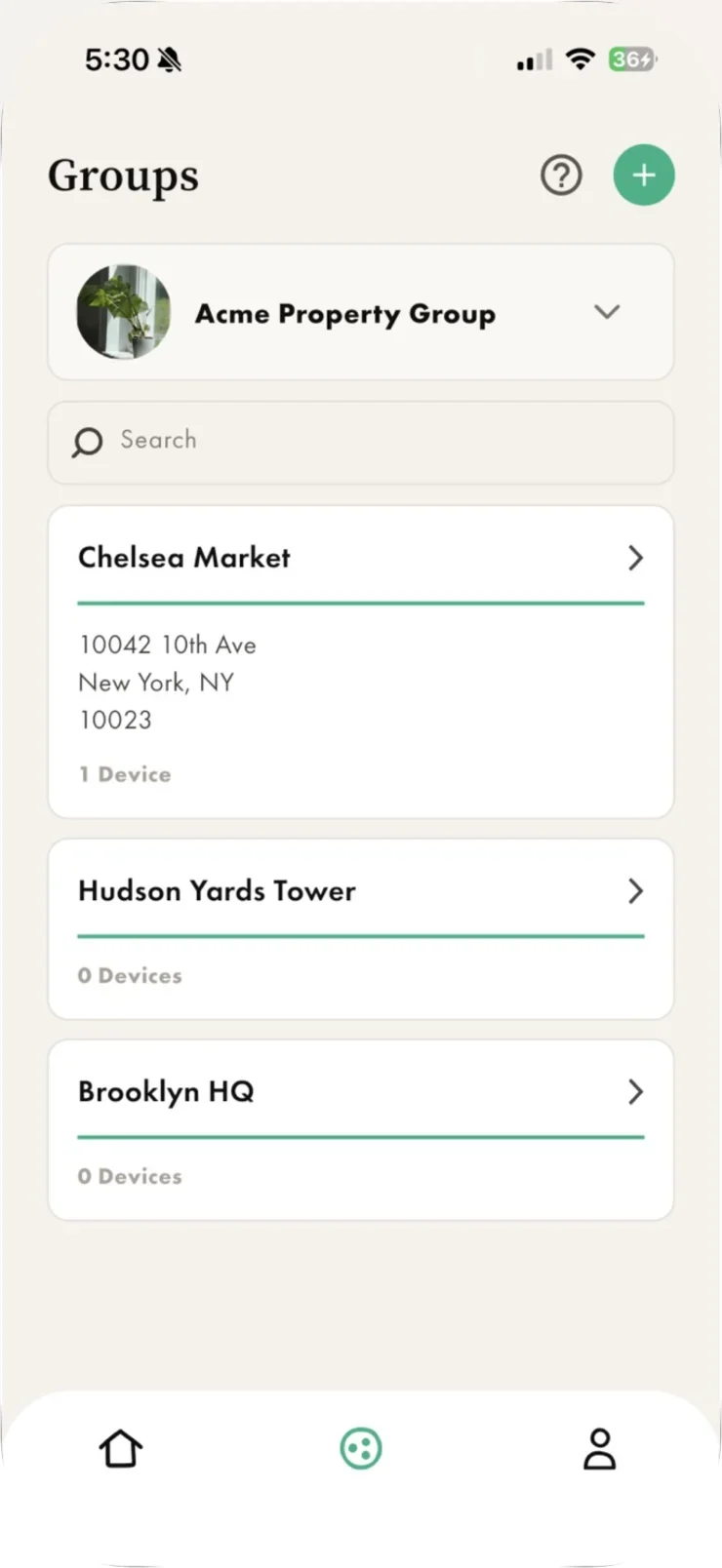
Groups organise devices by place. A common setup is one group per address, with sub-groups for floors or zones inside it.
The selector at the top of the Groups page chooses which Team’s groups you are looking at. If you belong to more than one Team, tap it to switch.
Add a group. Tap the green Plus icon in the top right, enter a name and an optional address, then press Confirm Here.
Add devices. Open the group, tap Manage Devices, select the devices, then save.
Add a sub-group. Open the parent group and tap the Plus icon in the top right.
Removing a group removes it for the whole Team, not just for you, so the app confirms first.
Account
Still stuck?
Email info@bioticinstruments.com with your device serial number, and we can look at the device’s activity from our side.